

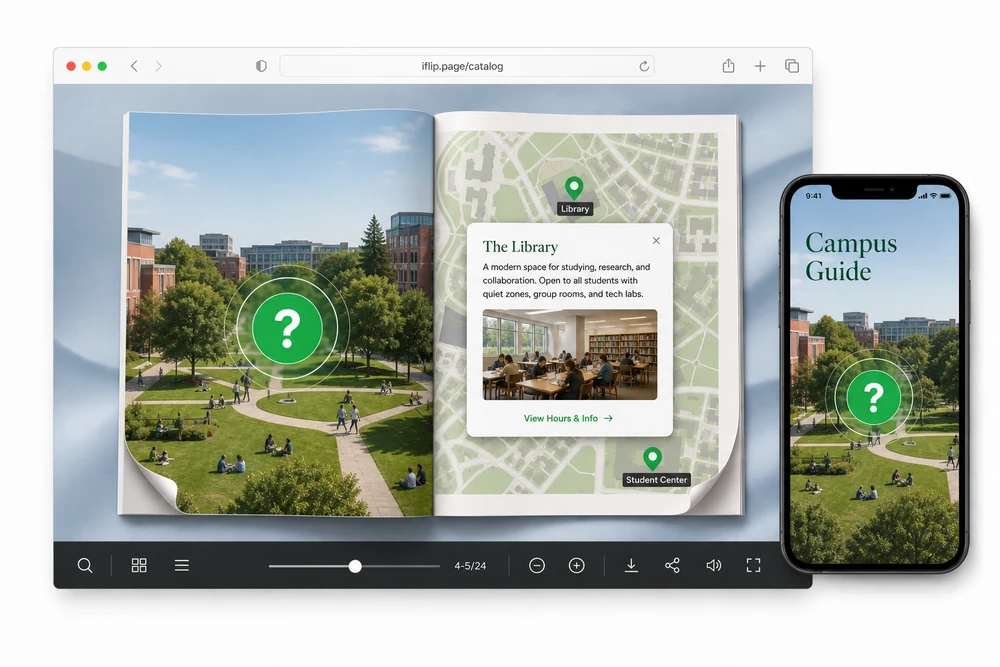
Why use info popups
Pages get noisy when every note has to live in the layout. Info popups keep the design clean and put the extra story behind a tap.
Use them for materials, specs, captions, glossary notes, and diagram callouts in catalogs, manuals, and reports.
Two ways to place info
Info Icon
Place a clear “?” style marker. Readers know there is more to read.
Transparent Hotspot
Draw an invisible area over a part of the art when you do not want an icon on the design.
Both open the same rich card: title, description, photos, and an optional Learn more link.
How you add one
- Open the flipbook and go to page media.
- Choose Info Popup.
- Pick Info Icon or Transparent Hotspot.
- Place it on the page.
- Add title, description, photos, and optional Learn more URL.
- Publish. Readers open details in place.
Common setups
Diagrams and cutaways
Explain parts without crowding labels onto the art.
Materials and specs
Keep fabric, finish, or technical notes one tap away.
Editorial asides
Add captions and context without breaking the magazine layout.
Details that matter in practice
- Extra detail without redesigning the PDF.
- Optional outbound Learn more button.
- Photos can live in the popup gallery.
- Works with any flipbook style.
FAQ
How do I place an info popup?
Use an Info Icon or a Transparent Hotspot over the area that needs explanation.
What can the popup show?
Title, description, and a photo gallery.
Can I link out?
Yes. Add an optional Learn more button to any URL.
Do readers leave the flipbook to read details?
No. Content opens in an in-flipbook popup.


