

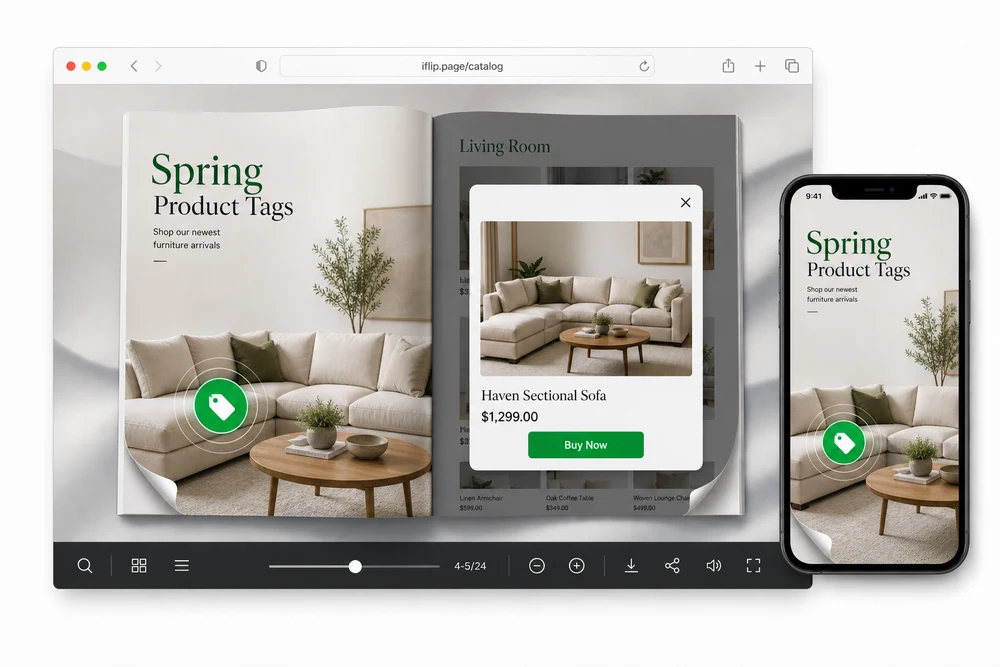
Why use product tags
A pretty catalog that cannot sell is a brochure. Product tags turn a spread into a shoppable moment: tap the item, see price and details, then go to the product page.
Ideal for lookbooks, wholesale books, showrooms, and retail catalogs where the photo is already doing the selling.
Two ways to place a tag
Tag Icon
Place a clear product marker on the page. Readers know what to tap.
Transparent Hotspot
Draw an invisible area over the product photo when you want a clean layout with no icon on the art.
Both open the same product card: name, description, gallery, price or sale price, and a Visit website button.
How you add one
- Open the flipbook and go to page media.
- Choose Product Tags.
- Pick Tag Icon or Transparent Hotspot.
- Place it on the product.
- Add name, description, photos, price, and product URL.
- Publish. Readers shop from the page.
Common setups
Fashion lookbooks
Tag outfits so shoppers open the SKU without leaving the story.
Furniture and home
Show price and a product link next to room shots.
Wholesale catalogs
Give buyers quick product cards before they jump to order pages.
Details that matter in practice
- Sale pricing can show before the click-out.
- Gallery photos live in the popup, not only in the PDF.
- Tags do not force a PDF redesign.
- Works with any flipbook style.
FAQ
How do readers shop from a page?
They tap a Tag Icon or Transparent Hotspot to open a product card with a buy or Visit website link.
Can I show sale prices?
Yes. Show regular and sale prices with currency.
What is in the product popup?
Name, description, gallery photos, pricing, and a Visit website or product page button.
Do tags change my PDF layout?
No. Tags overlay the page without redesigning the PDF.


