

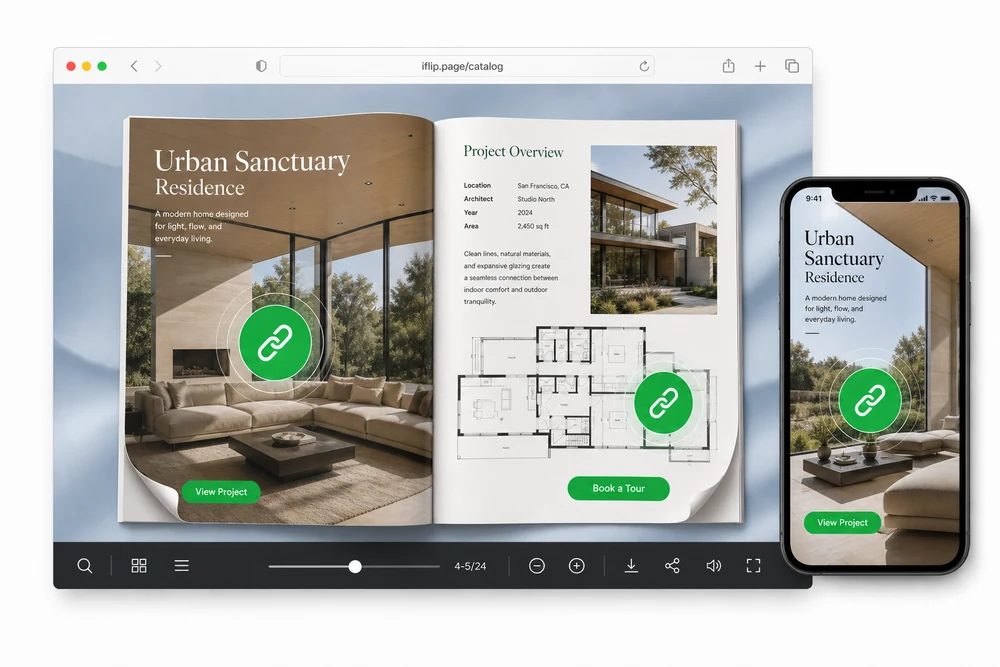
Why use interactive hotspots
A static PDF can show a phone number or a website. An interactive PDF flipbook can make that area tapable. Readers hit the action without hunting for a URL or leaving the book.
Use hotspots on catalogs, magazines, lookbooks, and sales decks when you want clear CTAs or invisible hit zones over art that already looks finished.
Three ways to place a link
Linked Icon
Place an animated marker readers can tap. Good when you want a visible “tap here” cue without covering the layout with a big button.
Solid Button
Draw a labeled button on the page. Match brand colors and give a clear call to action such as Shop, Book a demo, or Learn more.
Invisible Hotspot
Draw a transparent hit zone over a photo, logo, headline, or map. The design stays clean. The area still opens a link.
All three live under Links & Buttons in page media. Pick the style that fits the page, then set the destination.
How you add one
- Open the flipbook and go to page media.
- Choose Links & Buttons.
- Pick Linked Icon, Solid Button, or Invisible Hotspot.
- Place or draw it on the page.
- Set the link: URL, page jump, call, or email.
- Publish. Readers tap and go.
Common setups
Catalogs
Make product photos open a product page, or put a Shop button under a hero spread.
Magazines and lookbooks
Link credits, brand sites, and shop-the-look moments without cluttering the art.
Sales decks
Jump to a pricing page, open a calendar link, or dial the sales line from the page.
Details that matter in practice
- Hotspots work with your existing PDF. You do not rebuild pages for every link.
- Buttons and icons can match your brand colors.
- Invisible zones keep polished layouts looking print-ready.
- Works with any flipbook style.
FAQ
What hotspot styles can I add?
Three: Linked Icon, Solid Button, and Invisible Hotspot.
Do I need to redesign my PDF?
No. Hotspots sit on top of your existing design.
What can a hotspot open?
External URLs, page jumps, phone calls, or email links.
Do readers leave the flipbook?
Actions stay inside the flipbook experience whenever possible.


