

Why add page audio
Some stories need a voice. Training steps, brand films without video, museum guides, and kids books all work better when sound sits on the page.
Readers stay in the interactive PDF flipbook. No separate player tab. No scavenger hunt for a podcast link.
How audio appears
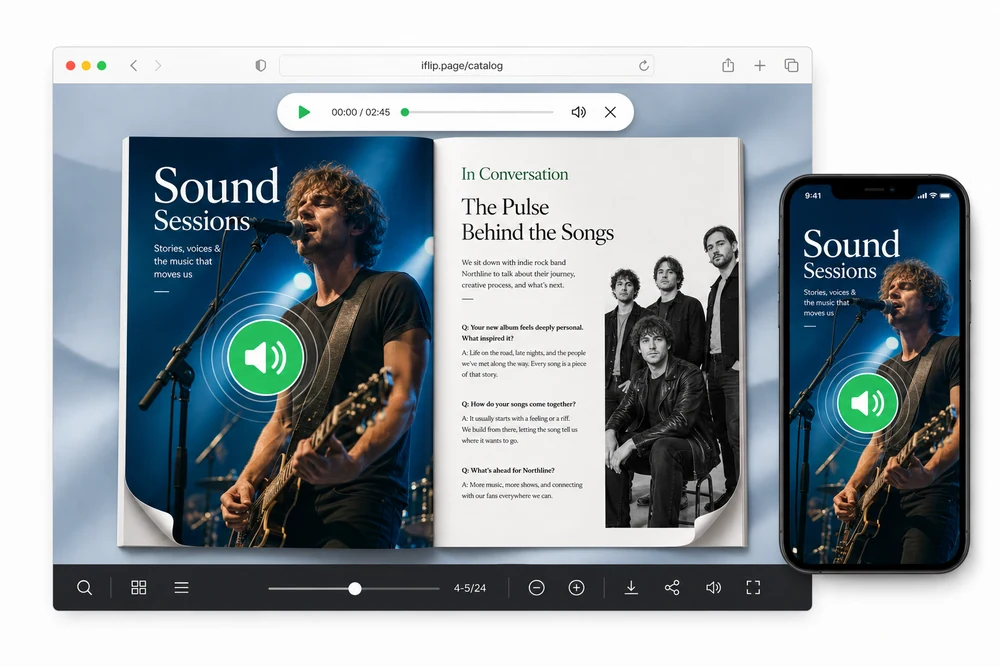
Audio Icon
Place a speaker marker on the page. Readers tap to play. Optional pulse draws attention.
Playback controls
Show a mini player with progress, volume, and mute, or keep the UI minimal and let the icon do the work.
Upload MP3 up to 20 MB. Host the file with the flipbook so playback stays reliable.
How you add one
- Open the flipbook and go to page media.
- Choose Audio / Audio Icon.
- Place the icon on the page.
- Upload your MP3.
- Set autoplay, loop, and mini player options.
- Publish. Readers listen inside the book.
Common setups
Voiceover guides
Narrate a spread while readers look at diagrams or photos.
Brand and music beds
Add a short loop for atmosphere on a cover or campaign book.
Training
Keep spoken instructions next to the written steps.
Details that matter in practice
- MP3 only, up to 20 MB.
- Optional autoplay and loop.
- Audio can continue across page flips.
- Pair with Page Videos when you need picture and sound.
FAQ
What file format is supported?
MP3, up to 20 MB per file.
How do readers start audio?
They tap the Audio Icon (speaker marker) on the page.
Can audio autoplay or loop?
Yes. You can enable autoplay, loop, and show or hide the mini player.
Does audio stop when flipping pages?
Audio can keep playing as readers flip, depending on your settings.


